
Introduction
Hey everyone, I'm Oil. This is a complete beginner-to-power-user guide to Google Antigravity. Since the release of the Gemini 4 lineup—especially Gemini 4 Neon—Gemini has become my most frequently used daily model, and Antigravity is Google's native desktop AI Agent for putting it to work.
We'll go step by step from installation to advanced workflows: account region & safe billing, workspace layout & daily controls, permissions & global rules, model/multi-agent modes, slash commands & built-in Skills, plus MCP, Plugins, and background Automations.
Account Region, Safe Billing & Login
Verify account eligibility and network region before opening Antigravity to avoid repetitive sign-in loops.
Account Requirements & Region Consistency
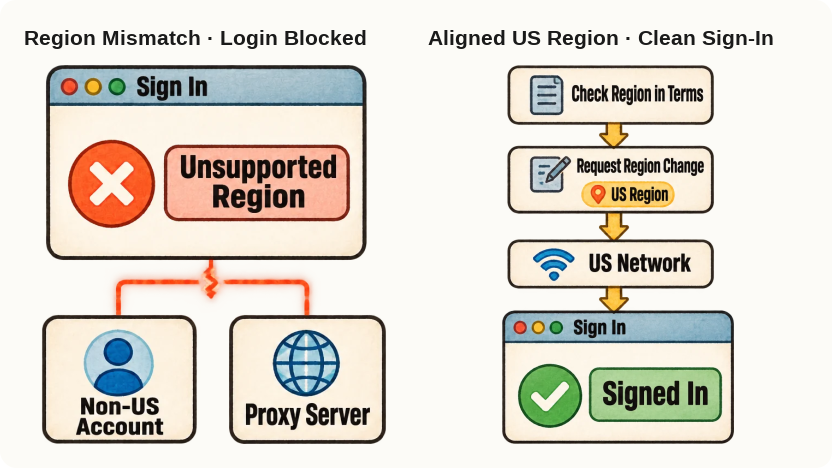
Antigravity checks account eligibility, Google Terms country association, and your active network IP simultaneously—any mismatch blocks login.
- Age & account type: Must be 18+. Personal Gmail accounts are simplest; Google Workspace enterprise/education accounts require an admin to enable Gemini Enterprise.
- Separate two region layers: Check https://policies.google.com/terms for your Terms country (controls Antigravity access); https://payments.google.com controls billing country.
- Request a region change if unsupported: If Terms show an unsupported region, submit https://policies.google.com/country-association-form to move to US (or Japan), selecting "Other" and explaining in English that you want to use Antigravity and Gemini 4 while on a stable US node (typically approved in 1–2 hours). Warning: never force a region switch while an active Google One subscription remains—let it near expiry and delete the old service first so remaining credit isn't forfeited.
Once Terms show United States, stay on a stable US proxy with TUN mode enabled (see Choosing an AI Agent & Environment Setup).
If a fresh or newly migrated account triggers Verify your account asking to send an international SMS to a US shortcode (blocked on mainland +86 SIMs), use either compliant workaround:
- Official Google App QR scan: Revoke old
Google Antigravityaccess at https://myaccount.google.com/connections, sign into the same account in the official mobile Google App (colorful G icon), and scan the QR code with Google Lens next to the search bar to confirm in-app. - Google Cloud Shell web verification: Open Google Cloud Console in a browser on the same account and activate Cloud Shell in the top right to trigger the same verification flow—web 2FA usually allows
+86phones to receive a code; once verified, fully quit and reopen Antigravity.
Plans, Legitimate Cards & Ban Red Lines
Download the standalone desktop app at https://antigravity.google (no separate IDE needed):
- Free: Includes
Gemini 4 Hydrogenfor trying the UI and light tasks. - Google AI Pro: Daily sweet spot—unlocks
Gemini 4 Neonand higher quotas. - Google AI Ultra (5× / 20×): My
$200/monthheavy-duty tier for complex repos and multi-agent work.
Skip sketchy virtual cards or resellers—set a US (e.g., tax-free Oregon) or Japan billing address in payments.google.com and link a standard dual-currency Visa or Mastercard directly in Google One (pure UnionPay cards will not work). After subscribing, join the free Google Developer Program on the same account, link a billing account, and manually activate your monthly credits ($10/mo Pro, $40–$100/mo Ultra for Gemini API / Cloud).
Respect three anti-ban red lines:
- Never reverse-proxy OAuth sessions into third-party clients (
403 TOS_VIOLATIONbans hit even paid Ultra accounts; use pay-as-you-go API for cross-tool calls). - Avoid gray-market bug-price upgrades or reseller-managed accounts (such as packet-capture tampered IAPs or third-party reseller channels like Jio—the former face mass revocations and canceled subscriptions, while the latter block newer models and lock up official subscription slots).
- Stick to a steady US or Japan node to avoid frequent country hops; if a legitimate personal account is mistakenly flagged due to network jitter, submit a human appeal explaining the situation honestly.
Workspace Layout & Daily Interactions
The Three-Pane Interface
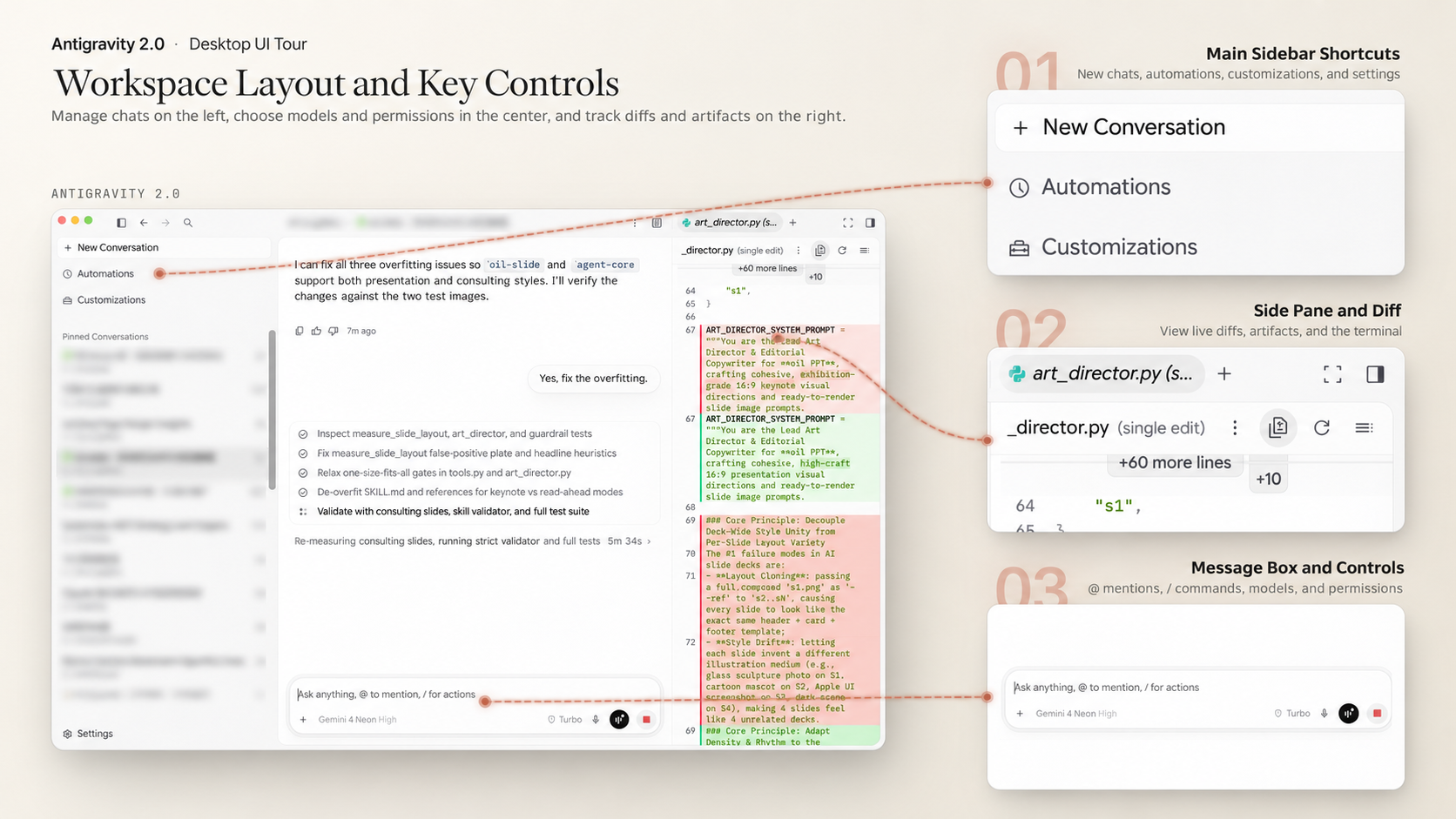
- Left Sidebar:
+ New Conversation,Automations,Customizations(Skills, Rules, Plugins, MCP),Pinned Conversations+ project-grouped threads, andSettingsat bottom-left. - Center Canvas: Live step checklist and chat input (
+or drag files,@for folders/threads,/for actions), model + reasoning selector bottom-left (e.g.,Gemini 4 Neon High), permission mode (Turbo) and voice bottom-right. Always open a dedicated project folder—never your Desktop (see Everyday AI Agent Workflows). - Right Helper Pane: Live code diffs,
Artifacts, quick tools, background tasks, andSide Question.
Organizing Threads with Pin & Archive
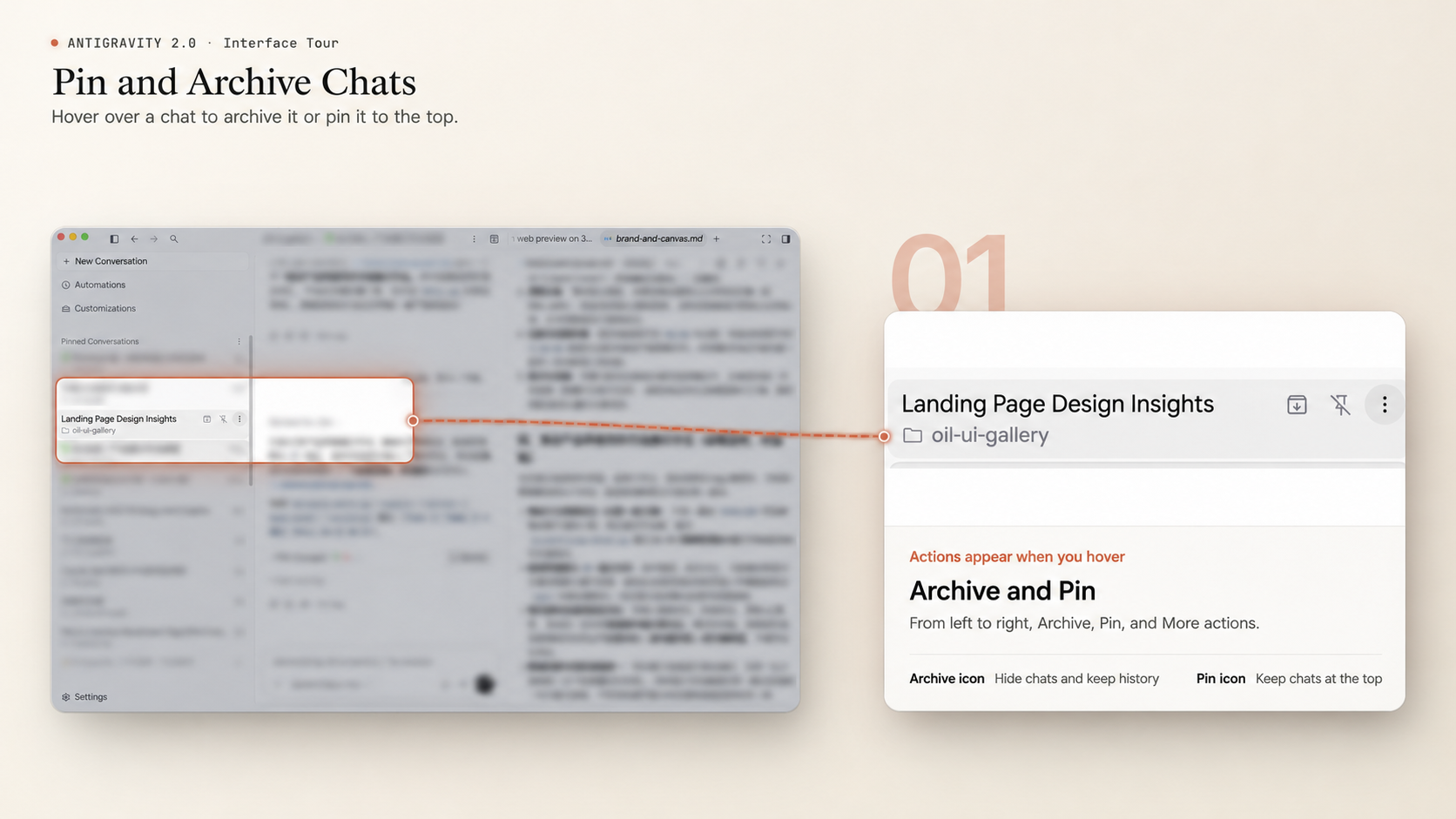
Hover any sidebar row to Pin active main threads to the top or Archive finished ones out of sight without deleting history.
Right Helper Pane & Side Question
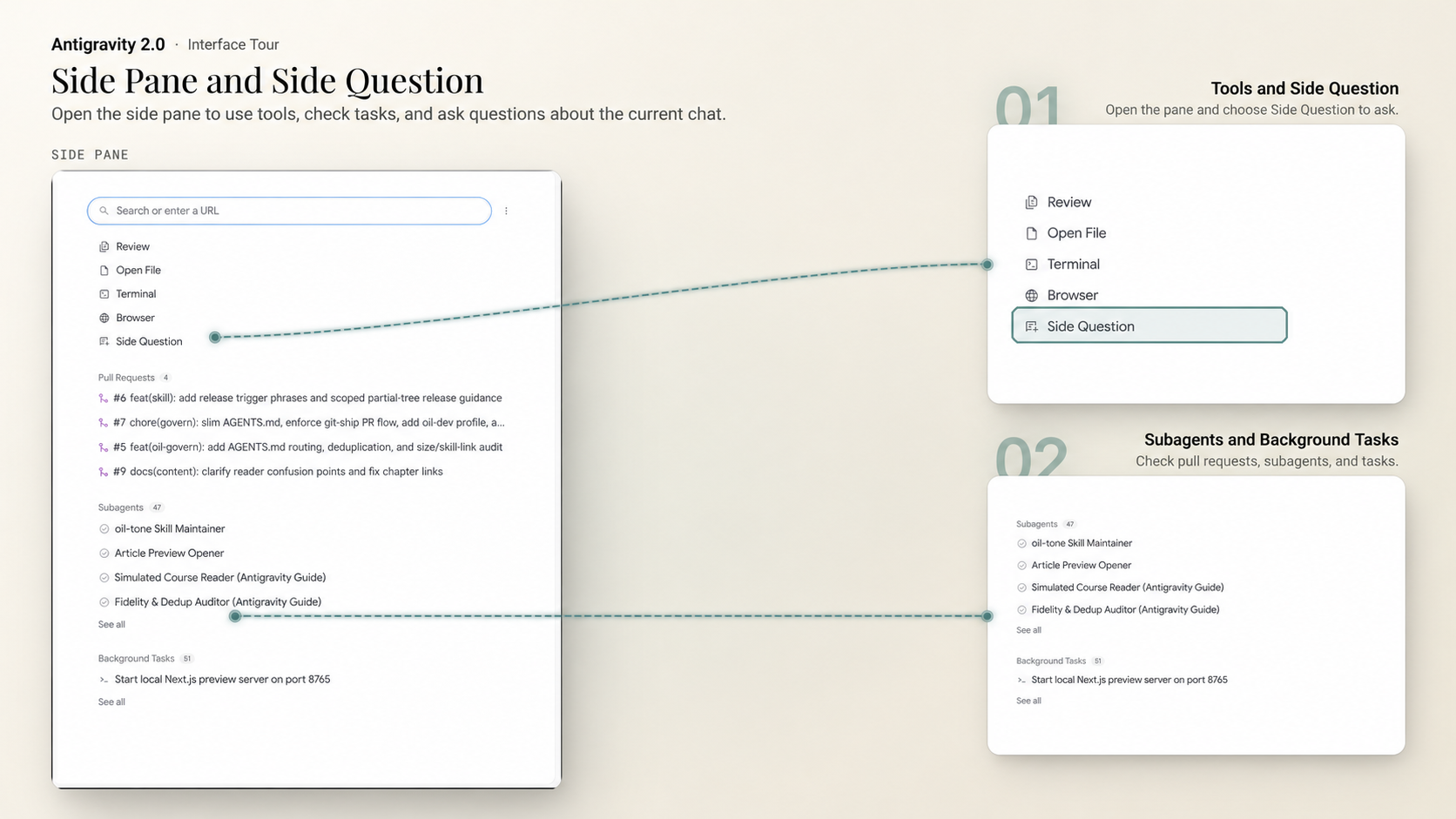
Unlike Codex's /side, toggle the right pane manually (Cmd + Shift + B). Use Side Question (or /btw your question on v2.32+) for context-aware side queries that never clutter your main thread, alongside quick buttons for Review, Open File, Terminal, Browser, and live lists of Pull Requests, Subagents, and Background Tasks.
Mid-Run Controls: Enter vs. Option + Enter
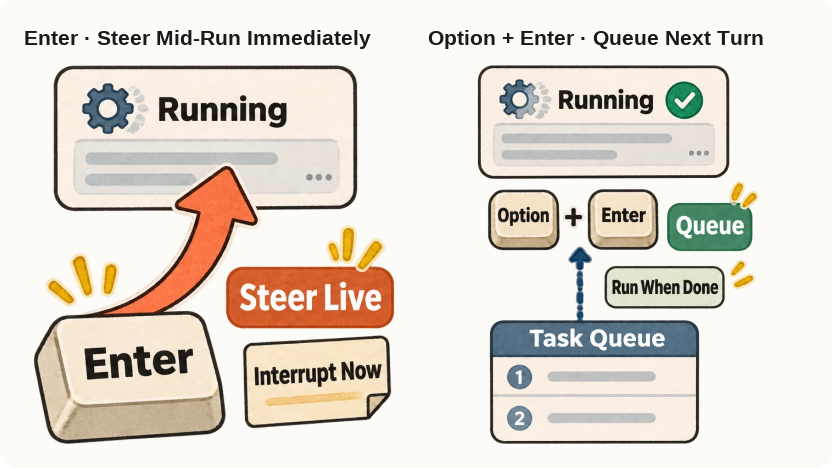
Enter: Sends immediately into the running turn to steer or correct course right away.Option + Enter(Alt + Enteron Windows): Queues the message until the current turn finishes. You can swap these defaults anytime inSettings → Input Box.
Settings, Permissions & Global Rules
Global vs. Project-Level Settings
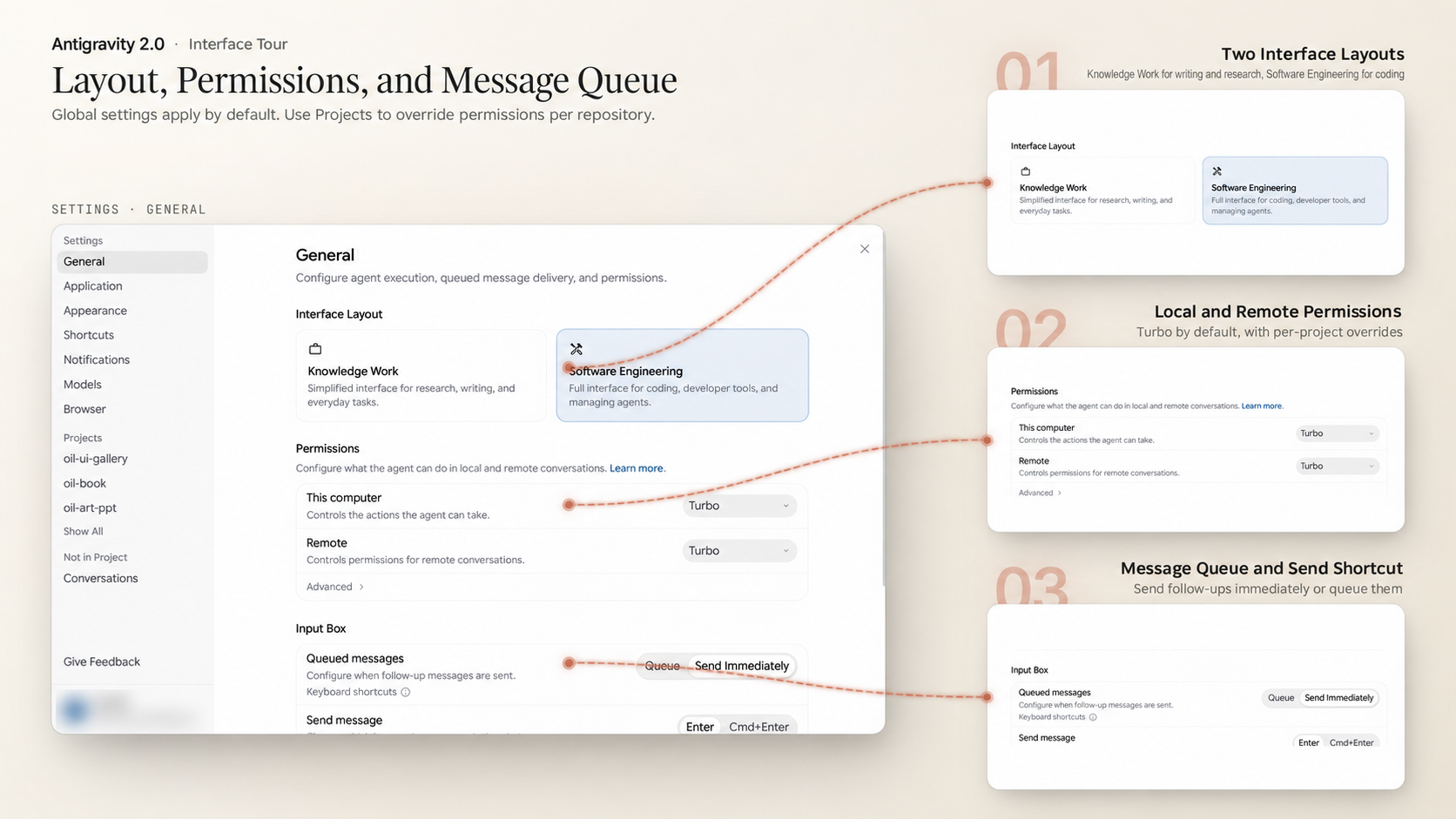
Open Settings (Cmd + , / Ctrl + ,): Global Settings apply everywhere; selecting any repo under Projects lets you override stricter Project-Level permissions. Key toggles: Interface Layout (Knowledge Work vs. Software Engineering), Permissions (Turbo for personal projects, Advanced for sandboxing/approvals), plus Notifications and wake-lock under Application.
Rules Hierarchy & Token Budget
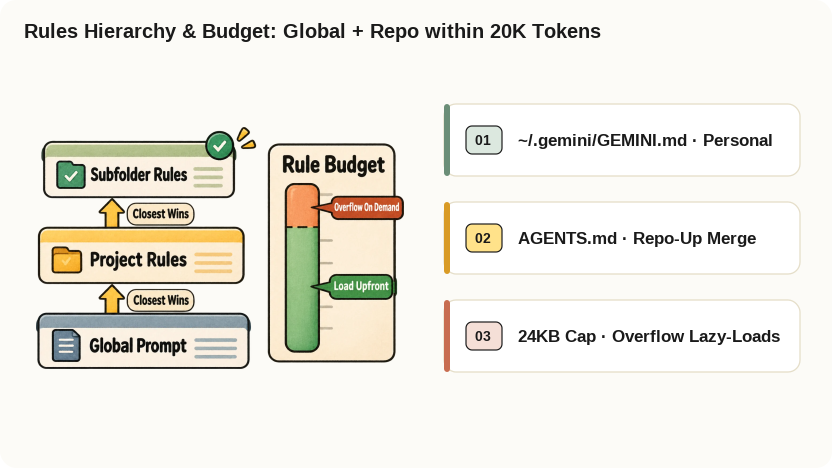
Rules load hierarchically (closer directories override farther ones): global ~/.gemini/GEMINI.md for personal preferences, and repo-level AGENTS.md / GEMINI.md / .agents/rules/*.md for team standards. Watch two hard limits: 24 KB max per file and a shared 20,000 Token always-on budget (overflow drops to on-demand file pointers).
Because Gemini 4 naturally tends toward sycophancy, hype words, and unverified absolutes (see Gemini 4 & Antigravity Field Notes), Antigravity desktop does not expose a manual UI editor for global rules—just open any chat, ask it "write this into my global rules", and paste the prompt I use myself:
Choosing Models & Multi-Agent Modes
Neon vs. Hydrogen & Orchestrator Mode
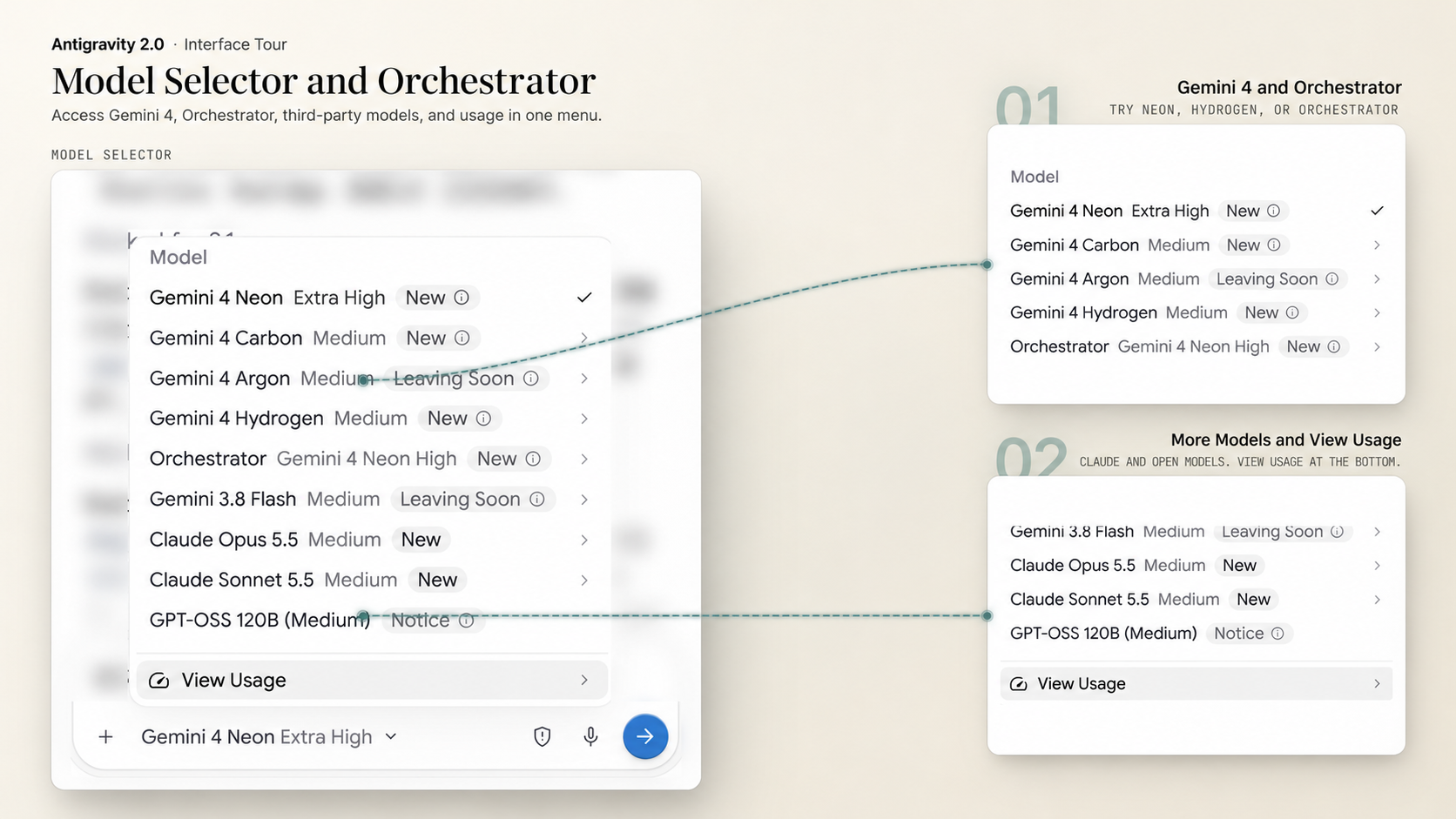
Today I recommend just two Gemini models: Gemini 4 Neon for complex tasks and Gemini 4 Hydrogen for light work (Carbon and Argon run slower and weaker than Neon without meaningful savings). Pick reasoning effort (Low / Medium / High / Extra High) per task complexity.
Orchestrator mode acts as built-in Plan mode: the strong model in parentheses explores code and writes the plan, then automatically hands execution to fast/cheap Gemini 4 Hydrogen.
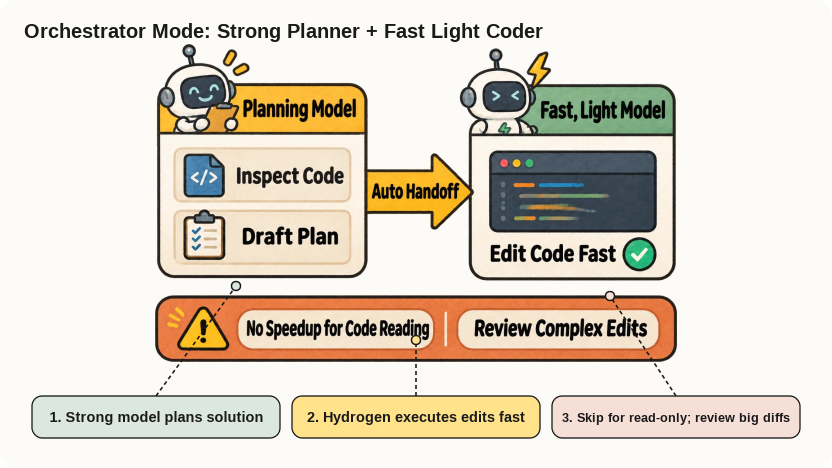
Two caveats: double-check Hydrogen's edits on complex repos, and never turn on Orchestrator for read-only code exploration (all reading runs on the parenthesized planner anyway).
Single Thread, Custom Subagents, /swarm, /teamwork, /boost & /run-workflow
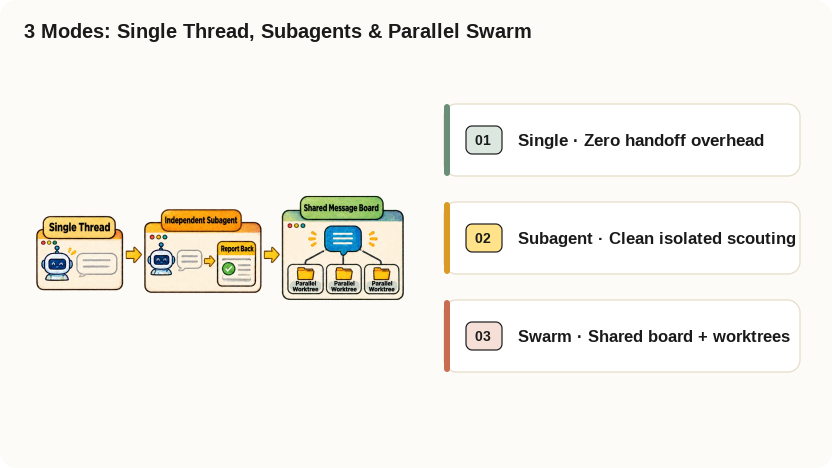
Antigravity ships with built-in subagents (research for read-only exploration, browser for web tasks, and self—see How to Use Subagents Effectively for the underlying pattern). You can also define custom subagents as Markdown files in ~/.gemini/config/agents/<name>.md, .agents/agents/<name>.md, or a plugin's agents/ folder (all visible under Customizations → Custom Agents).
Each file has YAML frontmatter specifying name, description, tools (an allowlist—omitting tools defaults to limited read-only permissions), subagent: true, model, and sandbox settings, followed by its system prompt. You don't need to memorize fields—just ask Antigravity:
One limitation: standard subagent configs only expose abstract tiers (inherit, flash, pro, flash_lite) rather than exact model menu entries. To pin specific models like Gemini 4 Hydrogen (Low) for parallel scouting (as I do via oil-dev-skills), use /swarm.

| Mode | Best For | How It Works | Setup | Plan & Models |
|---|---|---|---|---|
/boost |
Hard, indivisible logic needing deep critique | Multi-round relay with fresh-context reviewers testing against original goals | Runs directly in current repo | Paid plans only |
/swarm |
Parallelizable independent chunks | Coordinator + named workers on a shared @-mention board; idle workers cost 0 |
Current repo (or isolated copies when needed) | All plans; pin any exact model |
/teamwork |
Huge multi-phase autonomous builds | Stage-by-stage handoffs via fresh managers, independent reviews & test gates | Interviews scope first; runs in ~/teamwork_projects/ |
Paid plans only |
/run-workflow |
Fanning the same action across dozens of files | Agent writes a Python script orchestrating parallel/staged agent pipelines | Runs directly in current repo | All plans |
(Note: /run-workflow is the modern dynamic Python orchestrator—distinct from deprecated legacy .agents/workflows/*.md files.)
For most everyday development, single-thread chats, subagents, and /swarm are enough. Reach for /boost when you hit an indivisible problem that keeps slipping past one pass, /run-workflow when fanning the same task across dozens of files, and /teamwork only for long-running unattended multi-stage builds.