
Introduction
Hey everyone, I'm Oil. This is your first step into AI coding: understanding what an AI Agent actually is, choosing among today's models and desktop clients, and setting up official subscriptions and network proxies cleanly.
Most newcomers used to web chatboxes like ChatGPT, Claude, or DeepSeek hit three initial hurdles: telling an AI Agent apart from browser chat, choosing a first tool among dozens of options, and getting past overseas subscription and proxy connection errors. Let's clear all three in one pass.
AI Agent vs. Web Chat
If you've only ever used browser chatboxes, the difference comes down to action.
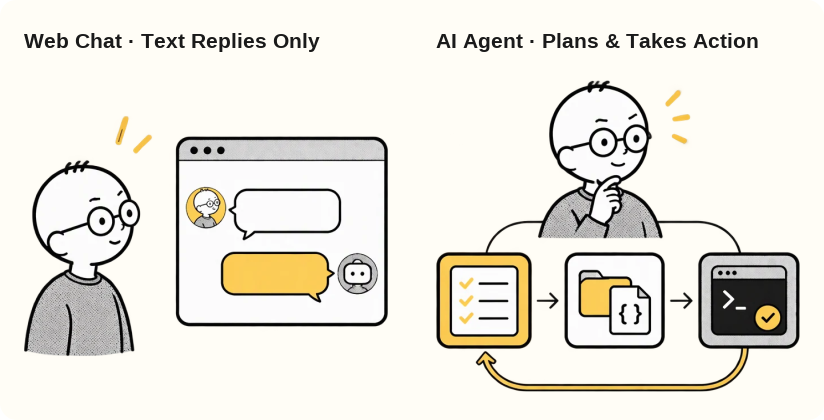
A web chatbox is strictly back-and-forth text: you ask a question, it replies with text. To edit code or build a webpage, you manually copy code into chat and paste the result back into local files to test.
An AI Agent takes real actions on your computer. Give it a goal and it plans its steps using built-in tools—editing local files directly, running terminal commands (installing packages, running builds, launching previews), and sequencing follow-up steps.
Even more importantly, it reacts to its own command results. If a command throws an error, you don't copy-paste logs back—it reads the error itself and keeps troubleshooting until the job is done.
Picking Models by Capability & Communication Feel
Before choosing software, lock in one core rule: picking an Agent tool is really picking the model behind it. Two principles matter most when starting out:
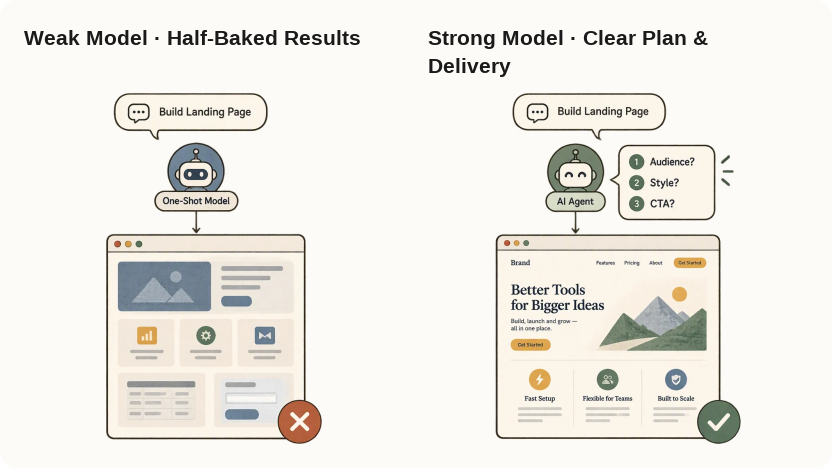
- Start with a strong model so you see the true ceiling. Picking an underpowered cheap model on day one produces half-baked results and kills motivation early.
- Prioritize strong conversational feel. When you're still learning how Agents work, a communicative model grasps intent accurately and breaks a short prompt into sensible steps instead of wandering off track.
Models evolve quickly, so I keep my live picks and field notes synced right below—filter by workflow scenario or browse all models, and expand any card for strengths, limits, and access barriers:
Choosing Your AI Agent Client
1. Start with a Multi-Model Aggregator to Sample Differences
At the very beginning, an all-in-one multi-model IDE like Cursor or ByteDance's Trae is handy for switching across Claude, Gemini, and GPT side by side to compare communication feel, visual taste, coding strength, and price.
Of those, I recommend sampling Cursor first because it bundles top frontier models cleanly. However, I don't recommend staying in Cursor for heavy daily work—aggregators burn quota quickly with lower leverage than first-party subscriptions.
2. Switch to a First-Party Agent for Daily Work
Once you know which model family you prefer, the rule is simple: use the model maker's own first-party Agent.
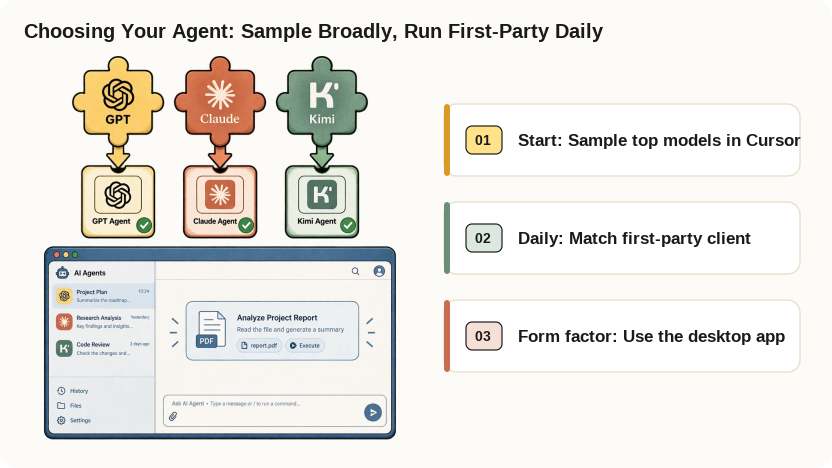
Each major model pairs with its native client—OpenAI GPT with Codex, Anthropic Claude with Claude Code, Google Gemini with Antigravity (or Gemini CLI), and Moonshot Kimi with Kimi Code. My daily drivers are Codex, Claude Code, and Kimi Code (note that Claude currently carries steep signup barriers and strict account restrictions for users in China, so beginners starting with international tools usually find Codex smoother).
Why do first-party Agents outperform wrappers even when the surface features look identical? Because first-party Agents fit their own models best under the hood. Post-training specifically tunes the model for its own client's tools and loop, and the client is engineered around that model's exact habits.
3. Low-Friction Chinese First-Party Options
If you'd rather not deal with international payments or proxies on day one, Chinese first-party clients—Kimi Code, WorkBuddy (Tencent Hunyuan), Z Code (Zhipu GLM), and MiniMax Code—all accept direct local subscriptions with zero setup friction.
4. Use the Desktop App
Don't be intimidated by terminal screenshots of Codex or Claude Code—go straight for the desktop app. Almost every major Agent ships a clean desktop client with the exact same layout: thread list on the left, chat and output on the right. Open a folder and start working immediately.
Getting the Best Subscription Leverage
1. Why Official Monthly Subscriptions Beat Pay-as-You-Go APIs
Always start with official monthly subscriptions—they offer high quota leverage.
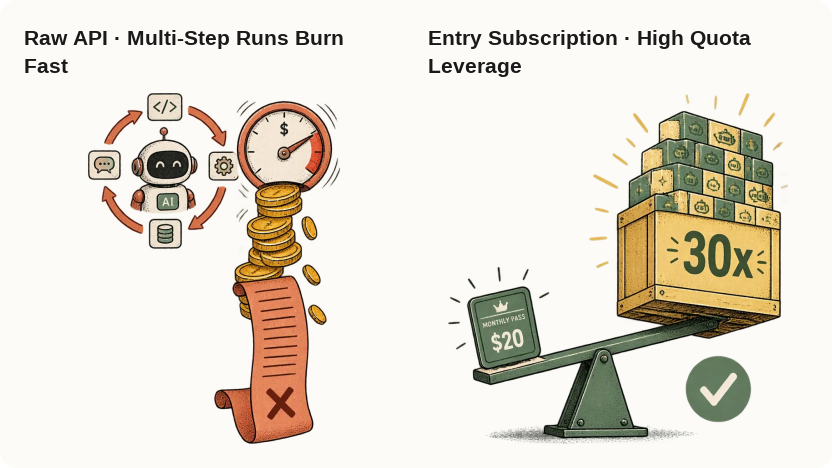
Agents run dozens of file reads and shell commands per task, burning raw API credits fast. Official subscriptions often deliver dozens of times more usable quota per dollar than raw API billing.
Start on the entry tier (such as ChatGPT Plus) to get your workflow running smoothly, and only upgrade once heavy daily usage genuinely hits limits.
2. Practical Subscription Paths
- Codex (Official ChatGPT subscription — top international starter): Typically requires an international credit card; if you need a Codex top-up service, you can use my own site oil-gpt.com.
- Gemini Pro (for Antigravity / Gemini CLI): Affordable Pro accounts and subscriptions are widely available (including budget options on Xianyu for readers in China).
- Claude (Claude Code — skip as a beginner in China): Currently very hard to subscribe to from China with strict anti-abuse checks; start with Codex or Chinese first-party tools first.
- Kimi Code / WorkBuddy / Z Code / MiniMax Code: Subscribe directly on their official sites with WeChat Pay or Alipay.

Proxy Setup & TUN Mode (For Regions Requiring a Proxy)
If you use US-based desktop Agents like Codex or Antigravity from a region requiring a proxy, you may hit a classic snag: international websites open fine in your browser, yet the desktop Agent spins forever or throws a region error. Fix it in three steps: pick a node provider → import into an open-source client → enable TUN mode + US node.
1. Node Providers & Access Mirrors
Keep two concepts separate: a provider supplies proxy nodes (via a subscription URL); a client app on your computer connects to them. Reference providers and China-accessible entry mirrors:
- FlyBit: Mirror 1 · Mirror 2 · Directory · GitHub
- WgetCloud: Backup Mirror · Main Site
- Just My Socks: Mirror · Main Site


When picking a plan: (1) confirm it includes US nodes and supports Clash / Mihomo subscription format; (2) start with a trial or monthly entry plan to verify stability on your ISP first.
2. Open-Source Clients & Importing Subscriptions
Download either open-source client from its GitHub Releases sidebar:
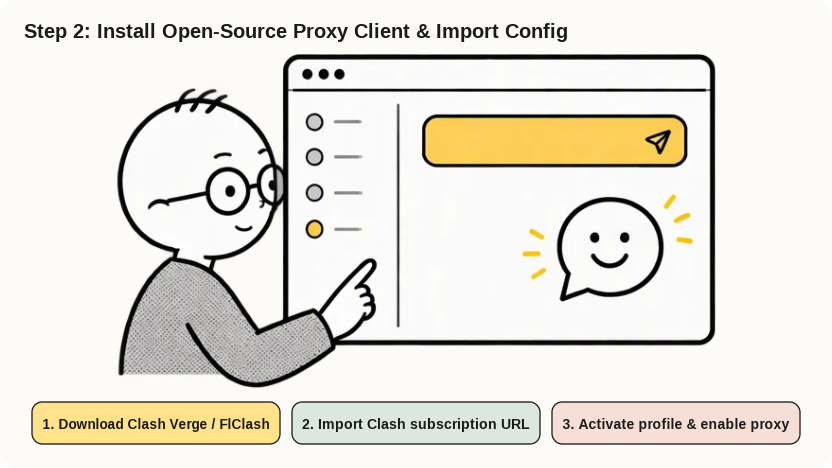
- Clash Verge Rev: github.com/clash-verge-rev/clash-verge-rev
- FlClash: github.com/chen08209/FlClash
Under Assets, pick setup.exe (x64/amd64) for Windows or .dmg (arm64/aarch64 for Apple Silicon Macs; x64/amd64 for Intel Macs). Import via one-click Clash import or paste your Clash/Mihomo subscription URL inside the client (treat that URL like a password—never share it publicly).
3. Two Mandatory Settings
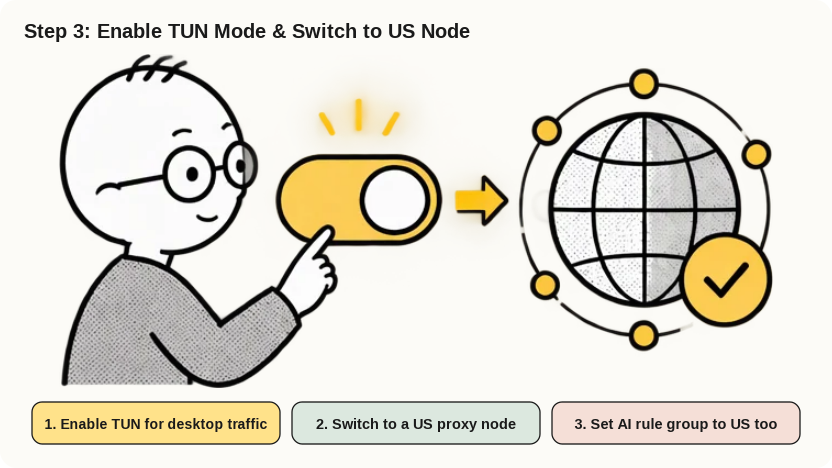
- Turn on TUN Mode: Standard "System Proxy" often covers browsers only, leaving desktop Agents and terminal subprocesses unproxied. Enabling TUN Mode (granting system permission on first toggle) creates a virtual network interface so every Agent and CLI tool routes cleanly.
- Select a US Node for Codex: Codex enforces region checks—pick a US node (and if using Rule mode, set any separate OpenAI / ChatGPT / AI rule group to US as well).
Summary
Three steps get your first AI Agent setup running cleanly:
- Match first-party desktop apps to strong, communicative models (Codex for international tools, or Kimi Code and other Chinese first-party tools with zero setup friction).
- Start on an entry-tier official monthly subscription for far better quota leverage than pay-as-you-go APIs.
- Enable TUN mode and a US node if routing US-based Agents through a proxy. Next up: Everyday AI Agent Workflows.