
Introduction
Hey everyone, I'm Oil. This guide covers browser automation and computer automation for AI Agents—the core advantages of AI automation over traditional scripts, how to prioritize between CLI, Browser Use, and Computer Use, common daily use cases with ready-to-use prompts, and step-by-step setup for Ego Lite, Chrome extensions, and desktop control.
Before AI Agents, automating web or desktop workflows meant Selenium/Playwright scripts or RPA tools—both brittle (one layout change or surprise popup broke everything) and blind to page meaning. AI automation brings three clear advantages: plain-English instructions instead of hardcoded selectors, adaptive recovery when popups appear, and real-time judgment combined with clicking.
The Three-Tier Automation Priority
1. Ranking by Convenience and Token Cost
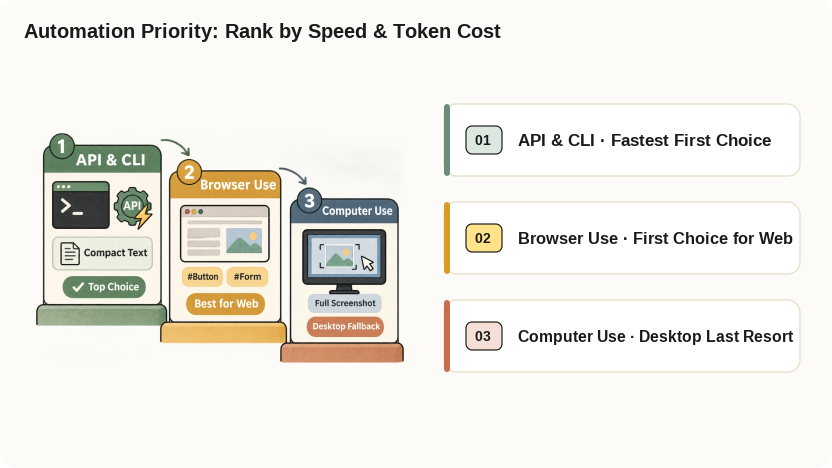
- Tier 1 — API & CLI (Always first choice): Whenever a service offers an API or CLI (Lark CLI, GitHub CLI), use it. One command returns compact text or JSON—fastest and cheapest in tokens.
- Tier 2 — Browser Automation (
Browser Use): No API/CLI, but usable in a browser? Drive the web UI directly to read text, click controls, fill forms, and upload files. - Tier 3 — Computer Automation (
Computer Use, last resort): Only for desktop-only native software with neither API/CLI nor a web version.
2. Why Browser Use Beats Computer Use Whenever Possible
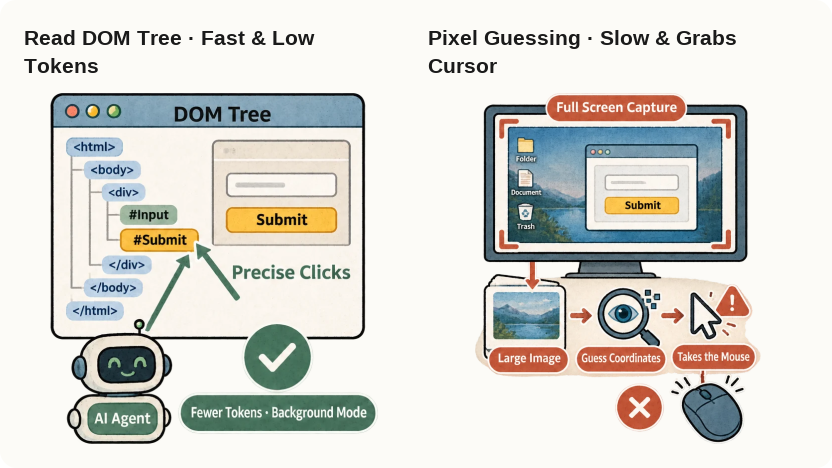
- Structured DOM vs. pixel guessing: Webpages expose a structured DOM tree so the Agent clicks exact elements cheaply and reliably. Classic Computer Use captures full screenshots every step and guesses
(x, y)coordinates—slow, token-heavy, and fragile on dense UIs. - Background isolation vs. hijacking your mouse: Browser Use runs quietly in an isolated tab or Space while you keep working; traditional Computer Use takes over your physical cursor and active window focus.
High-Frequency Browser Automation Use Cases
1. Logged-In Research, Shopping Comparisons & Form Filling
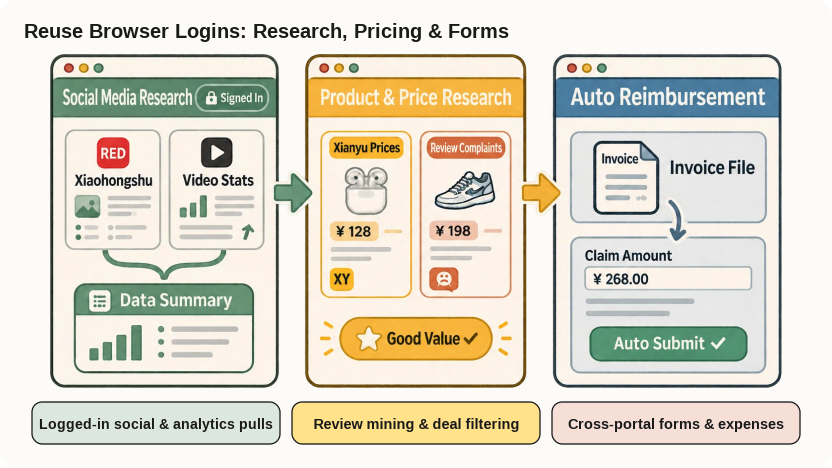
- Logged-in research & creator analytics: Reuse your active browser sessions to inspect X, Reddit, GitHub, Xiaohongshu, Bilibili, Douyin, WeChat Channels, or YouTube analytics without scraping walls:
Open my Xiaohongshu creator dashboard in the browser, pull impressions, views, and likes for my last 10 posts, analyze which performed best, and summarize into a Markdown table.
- Product research & secondhand deal hunting: Scan recent negative reviews or filter individual sellers on secondhand marketplaces like Xianyu:
Search Xianyu in the browser for "Mac mini M4 16G" under ¥3,200, filter out bulk resellers, and list 5 clear, high-value listings from individual sellers with links and prices.
- Cross-system forms & invoice reimbursement (always add "stop before final submit"):
Read all PDF invoices in invoices/, open my logged-in company expense portal, fill in each amount and date, upload the matching PDF, and pause right before the final Submit button for my approval.
2. Cloud Dashboards, Multi-Platform Drafts & Frontend QA
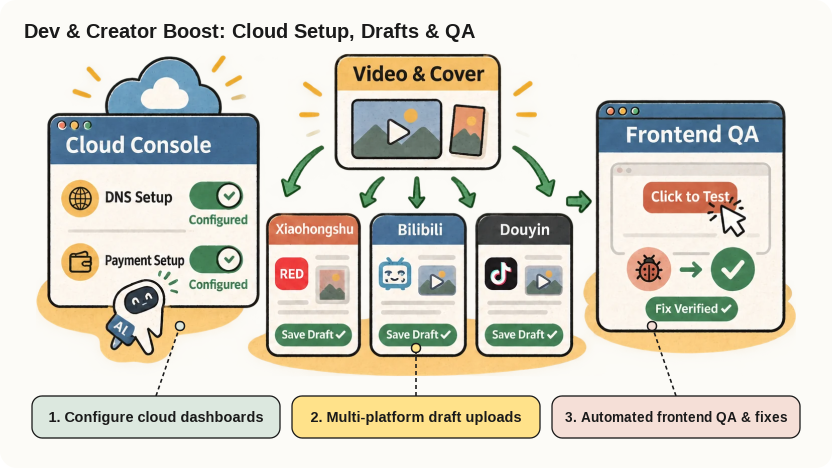
- Configuring complex cloud consoles (Cloudflare DNS, Stripe webhooks, Lark permissions): Log in once, pass the official docs URL, and let the Agent click through menus and copy generated keys back into your local project.
Using this official docs link, open my logged-in Cloudflare console, configure DNS pointing to Vercel, and enable automatic HTTPS redirects.
- Multi-platform video draft uploads across Xiaohongshu, Douyin, Bilibili, WeChat Channels, and YouTube (which I packaged into a
video-publisherSkill):Open the creator upload pages for Xiaohongshu, Douyin, and Bilibili, upload demo.mp4 with title "Browser Automation in 3 Minutes", fill tags, and save all as drafts—do not click Publish. - Automated Vibe Coding frontend QA:
Start the local dev server, open localhost:3000 in the browser, click every button and dialog, check for layout glitches or console errors, fix any bugs you find, and re-test.